
Reversing a clip is one of the simplest editing tricks—but it can completely transform how your content feels. Whether you want dramatic rewind effects, funny social media edits, or cinematic storytelling, this guide covers every platform and tool.
Methods Covered
Tools Reviewed
Creative Examples
Free to Start
Understanding the core concept before jumping into tools is essential. Here's everything you need to know about what reversing actually does to your footage.
Before jumping into tools, let's understand why creators use this effect. These are the top reasons Reverse Videos is a go-to creative technique.
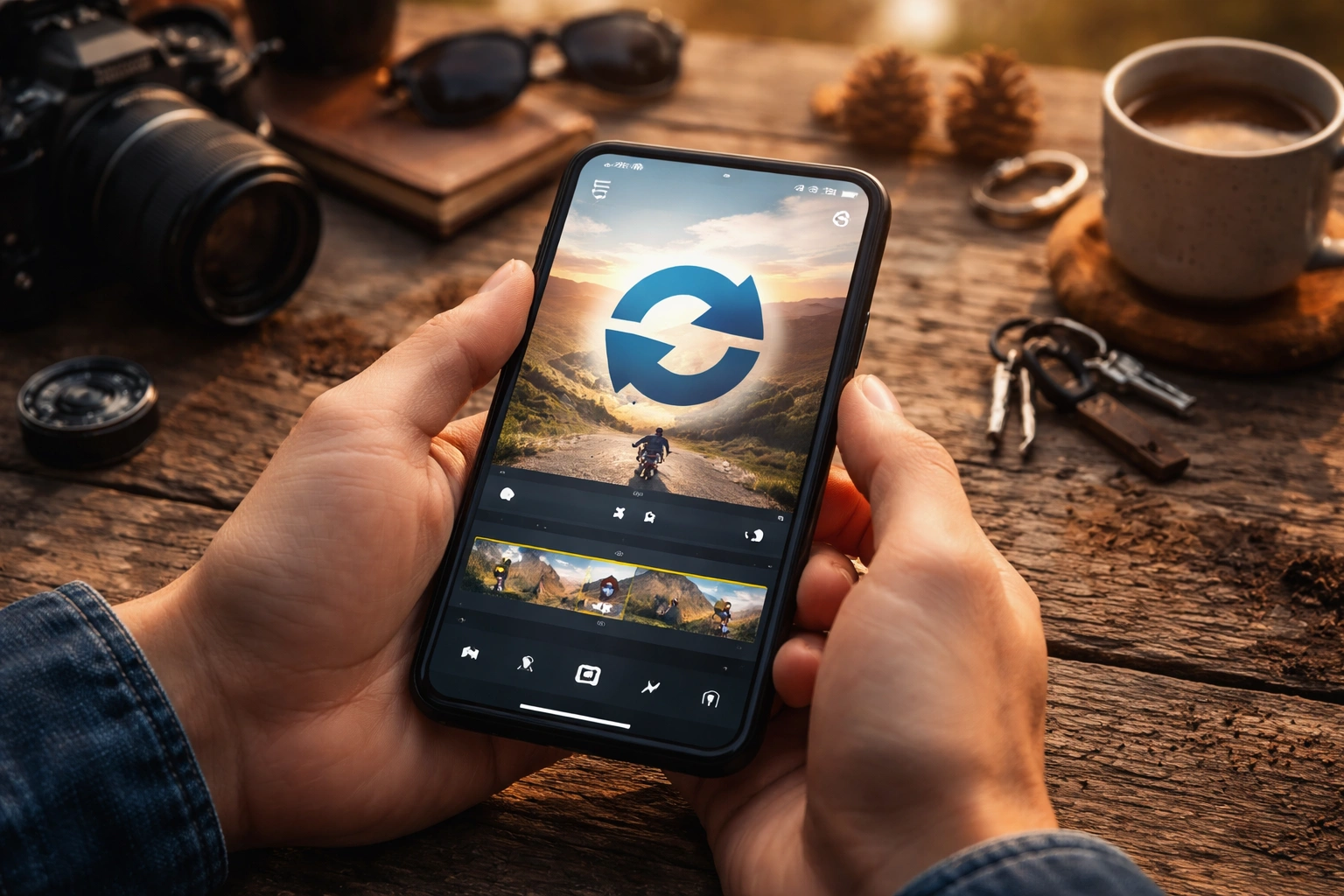
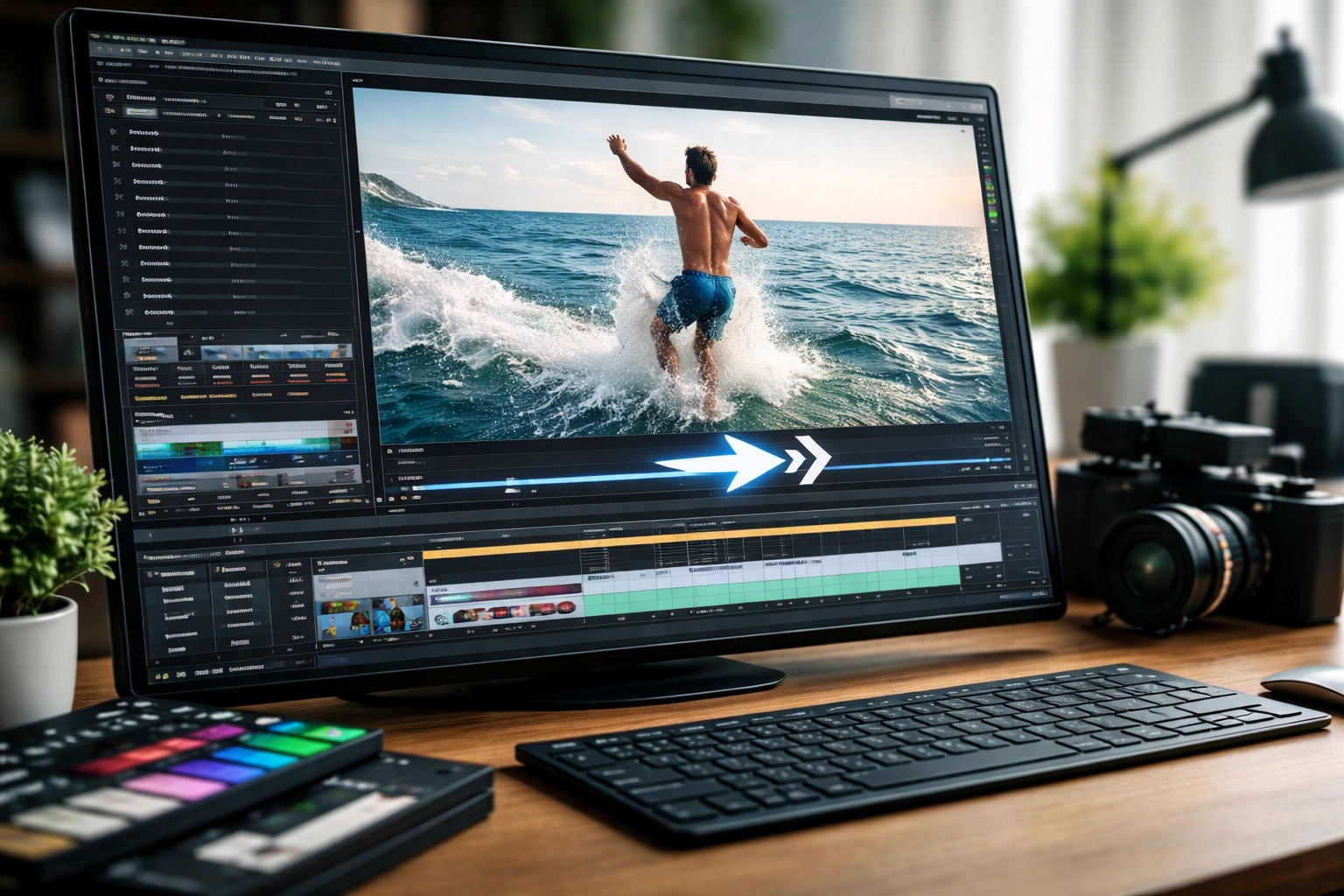
CapCut is one of the easiest tools for beginners and is available completely free on both mobile and desktop platforms.
Available on Mobile (iOS & Android) and Desktop (Mac & Windows)
iMovie offers a clean, professional editing experience built right into Apple devices. Perfect for clean edits without extra effects.
Mac, iPhone & iPad — Free with Apple devices
Android users have excellent free options. InShot is the top recommended tool for its clean interface and fast processing speed.
Free on Google Play Store — Android phones & tablets
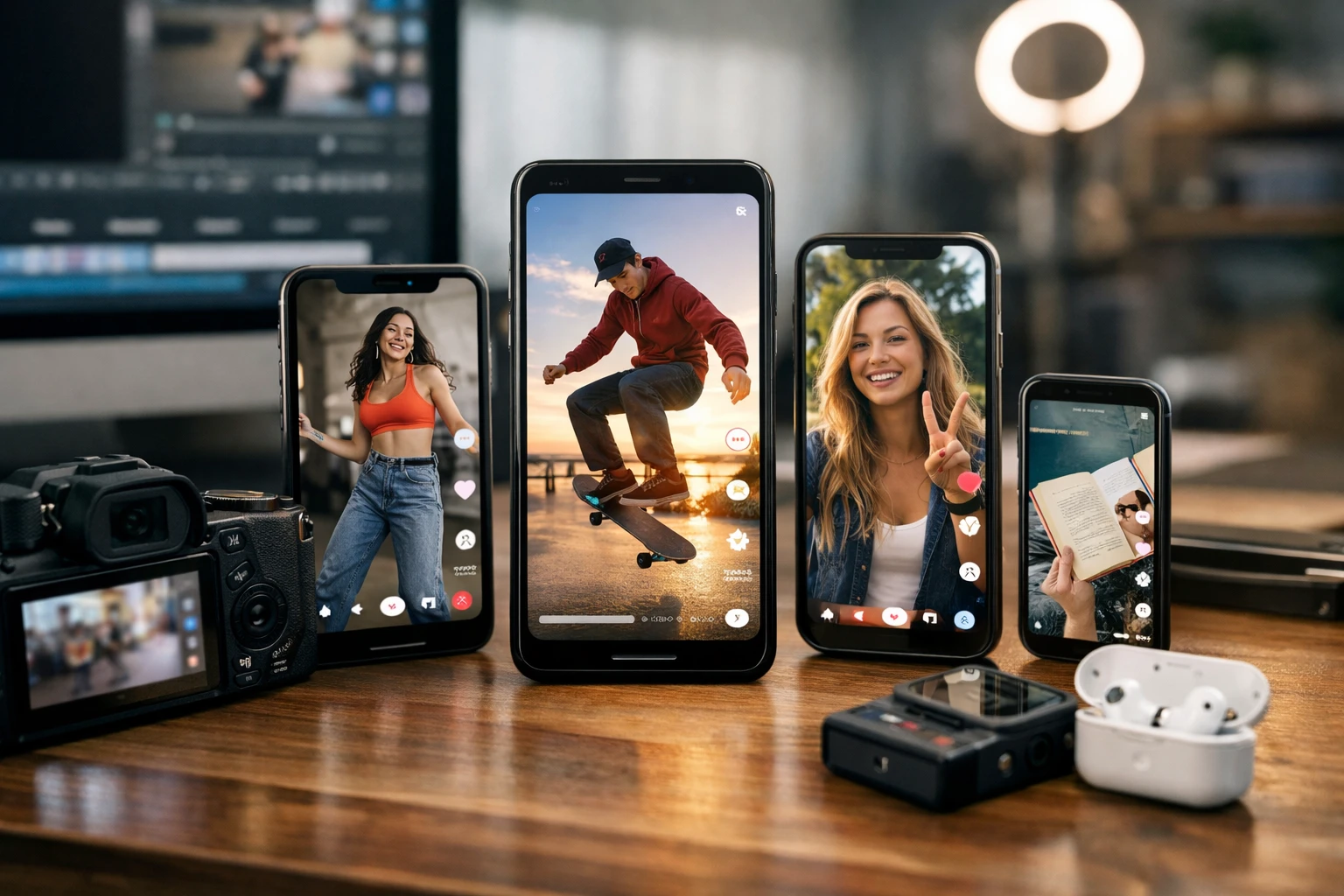
Android users have excellent free options. InShot is the top recommended tool for its clean interface and fast processing speed.
Works on any device with a browser — zero setup needed

Master these techniques to take your reverse edits to the next level
Short clips process faster and work better as reverse effects for social media engagement.
Motion blur in reverse looks unnatural and can ruin the visual effect you're aiming for.
Reverse + slow motion creates cinematic and dramatic moments that perform well on Reels.
Sound effects layered over reversed audio add a professional, intentional quality to the edit.
Always trim dead space from your clip first. This speeds up processing and improves focus.
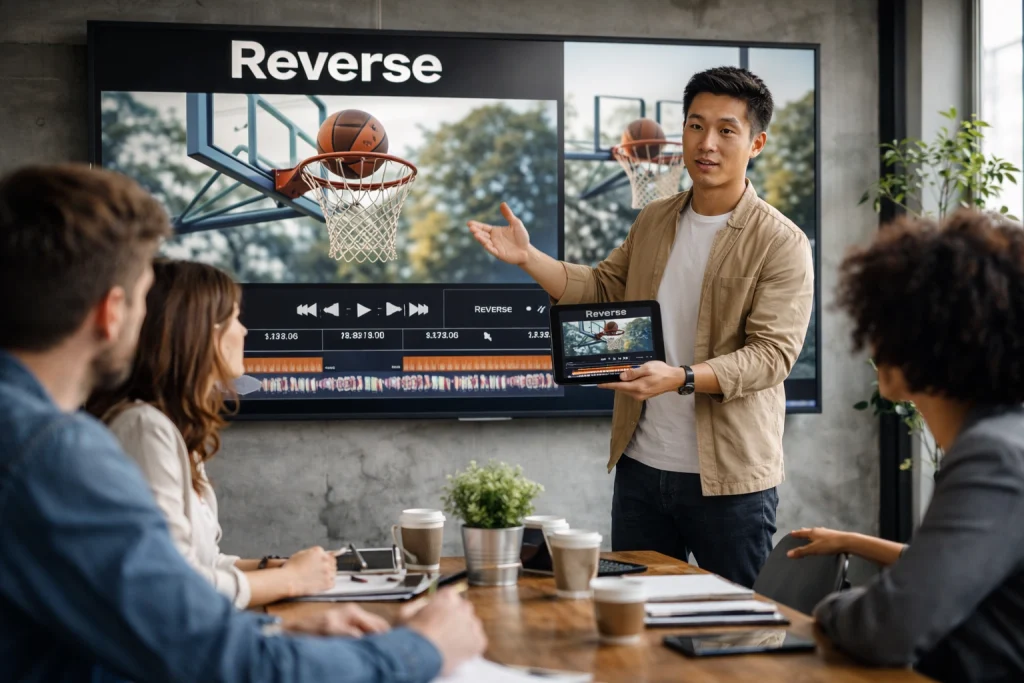
A dropped product flying back into a hand gives a "magical repair" illusion — perfect for brand storytelling and wow moments.
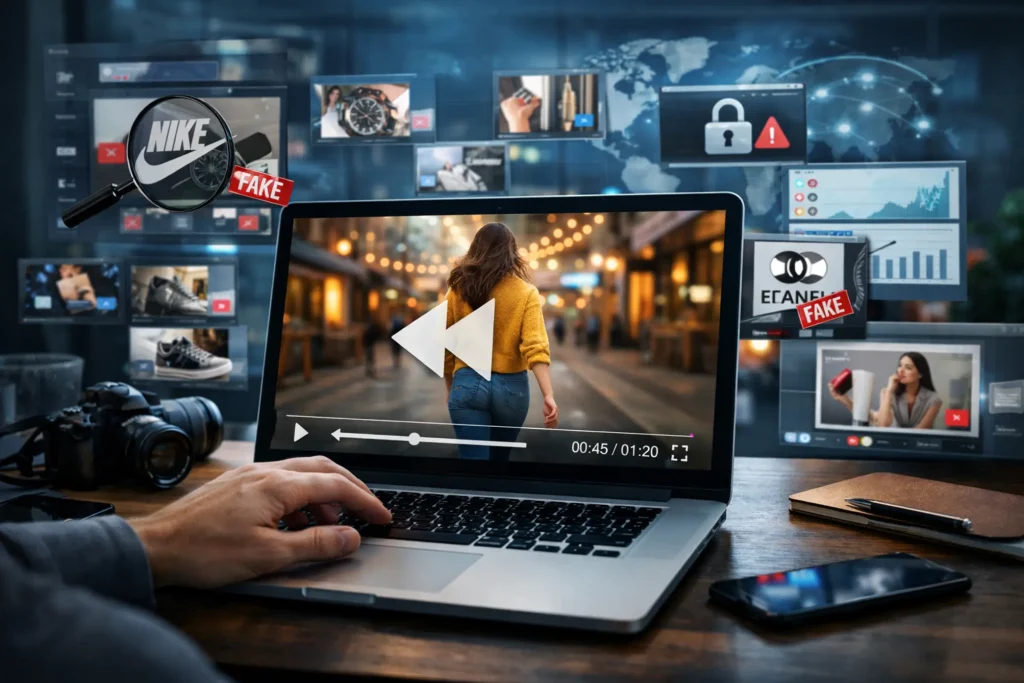
Remove makeup in reverse—it looks like it magically applies in front of viewers' eyes. A viral format for beauty creators.
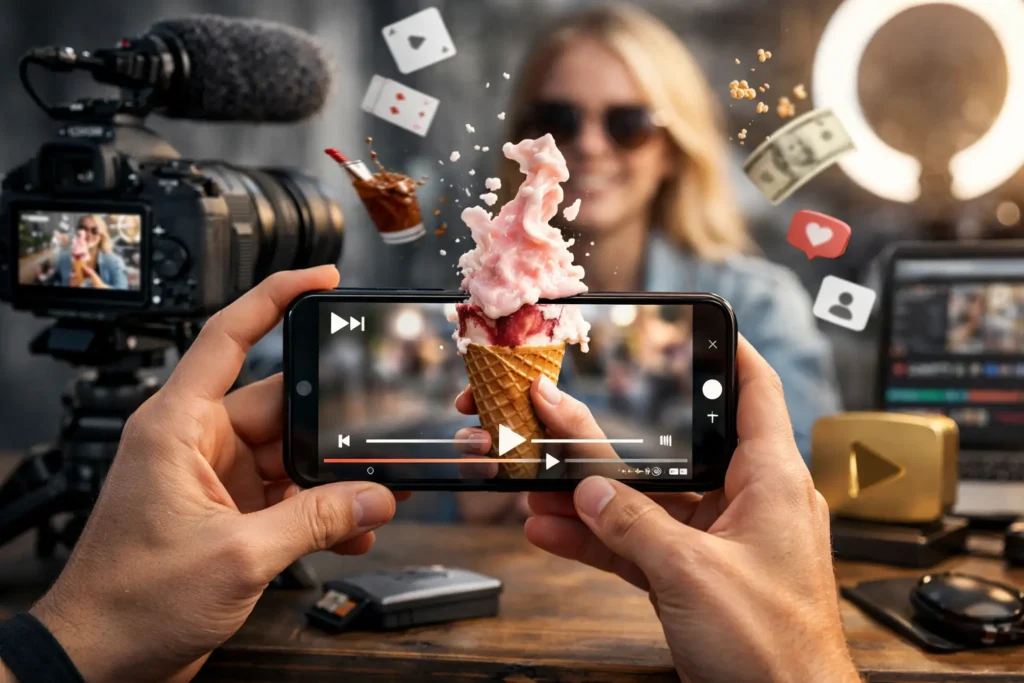
Basketball swish played backward makes the ball rise dramatically from the net. High-engagement content for sports pages.
Android users have excellent free options. InShot is the top recommended tool for its clean interface and fast processing speed.
Works on any device with a browser — zero setup needed
Tools like Adobe Premiere Pro and Final Cut Pro allow combining reverse motion with speed changes. This creates cinematic rewind transitions that feel polished and professional — the kind seen in blockbuster trailers and viral edits.
By ramping speed from slow → normal → fast → reverse, you achieve the signature "time rewind" effect that keeps viewers watching and sharing.

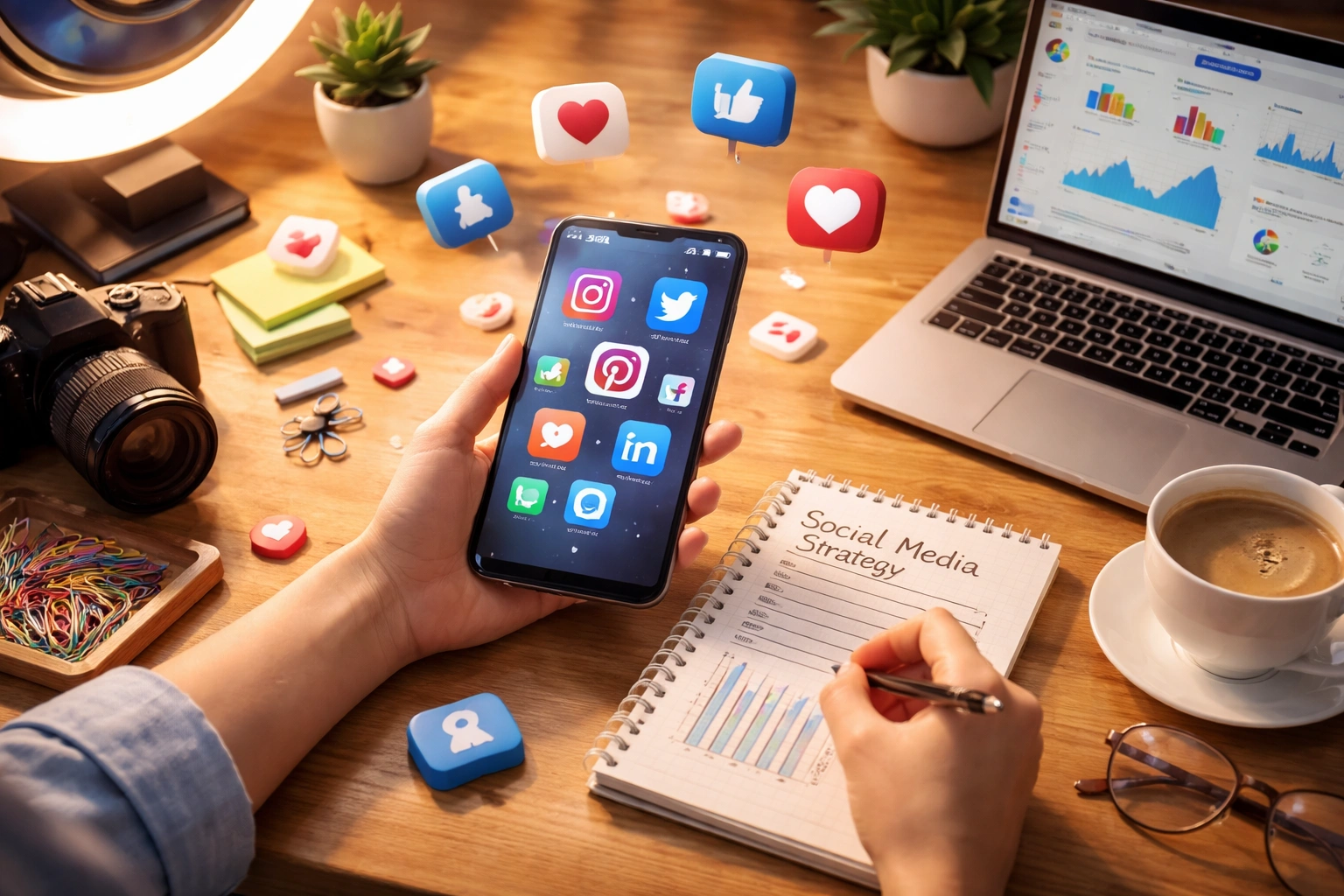
Reverse Videos are powerful in short-form platforms like TikTok and Instagram Reels because they surprise viewers. Unexpected motion patterns trigger curiosity, increasing watch time and engagement rates.
Reverse Videos can be paired with trending sounds to boost algorithm reach. When a reversed motion syncs perfectly with a viral audio track, shares and saves skyrocket.
The human brain is wired to notice unexpected patterns. Reverse motion is inherently counterintuitive, which forces viewers to pause, rewatch, and engage — exactly what the algorithm rewards.
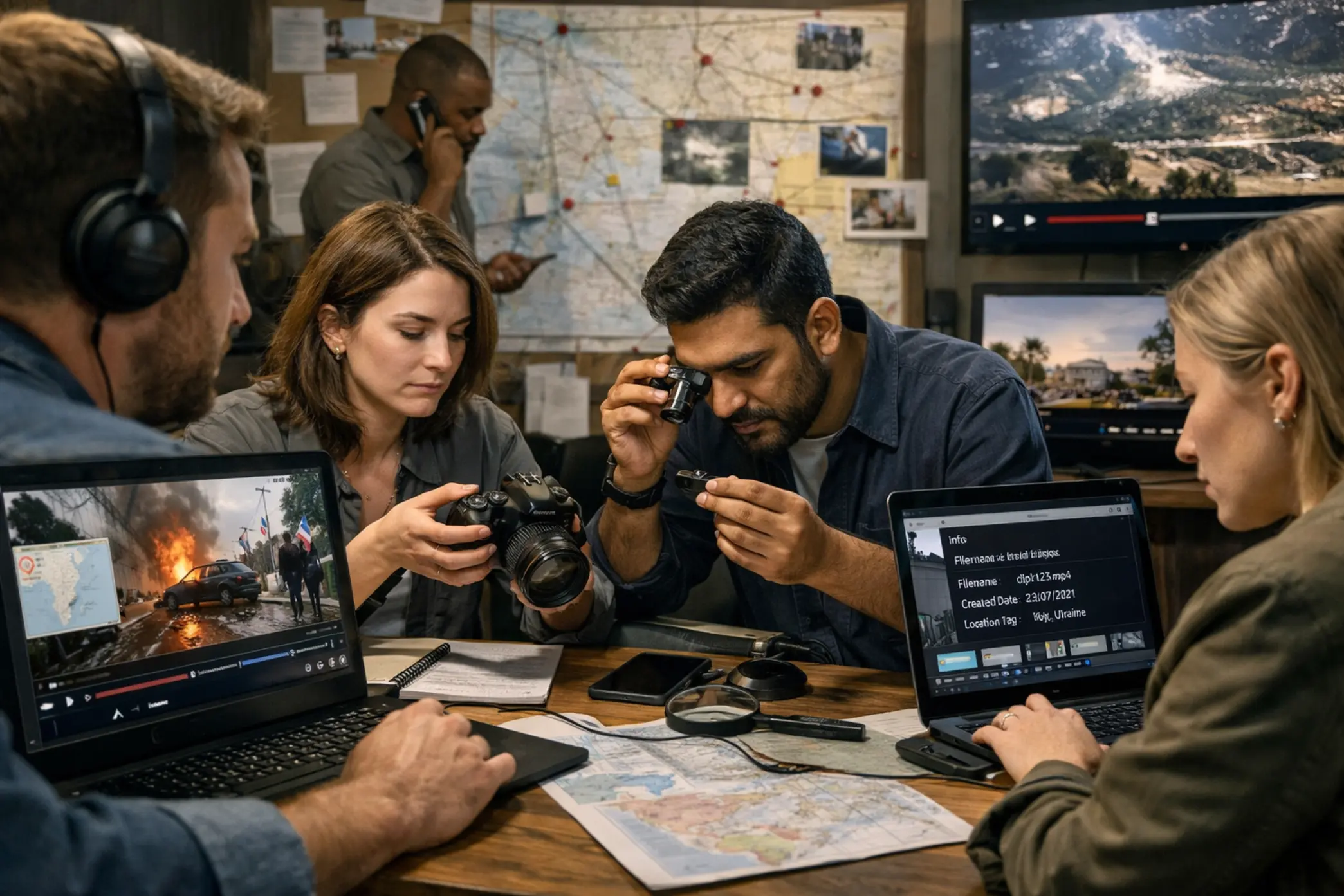
Sometimes you may want to verify whether a reversed clip already exists online before publishing. That's where Reverse Search Video tools become essential.
If you're checking originality or copyright safety, these tools help you verify before you publish. Reverse Search Video platforms scan your footage across massive databases.
Submit your video
AI scans databases
Protect your IP
This helps protect intellectual property and avoid repost conflicts. Tools analyze frames and detect visual similarities—even if the clip has been flipped or trimmed.
Modern AI platforms allow creators to search reverse video patterns across databases. Advanced systems now offer Reverse Video Search capability for journalists, content creators, and brands who want to verify authenticity. For example, before reposting viral content, running a verification scan ensures it's not misleading or stolen—protecting both creators and audiences.
Avoid these pitfalls to ensure yourReverse Videos look professional and perform well every time.
Yes! Many free apps like CapCut, InShot, and online tools like Kapwing and EZGIF allow video reversing at absolutely no cost. Premium options exist for advanced features.
Only if you export at a lower resolution than the original. Always export at native resolution to maintain full quality. The reverse effect itself does not degrade quality.
Yes! You can split the clip first using timeline tools in CapCut, Premiere Pro, or iMovie, then apply reverse to only that specific segment you want backward.
Yes, the audio reverses automatically along with the video unless you mute the audio track first. For best results, mute and add fresh audio or music afterward.
CapCut is best for beginners with its simple one-tap reverse feature. Adobe Premiere Pro is ideal for professionals who need advanced control over the effect and audio.
Yes! Both iMovie and CapCut are available for free on the iPhone App Store. iMovie comes pre-installed on most iPhones and is the easiest option for Apple users.
Yes, if your device supports 4K processing. It may take significantly longer to render than lower-resolution files, but the quality will be fully preserved on capable devices.
Absolutely! Reverse video boosts engagement significantly by triggering viewer curiosity. Unexpected motion patterns keep viewers watching longer and sharing more often.
Absolutely — especially when combined with trending sounds on TikTok or Instagram Reels. The surprise factor of reversed motion naturally drives shares, saves, and comments.
Not directly, but higher engagement rates (watch time, shares, saves) generated by effective reverse effects positively impact visibility in platform algorithms and search rankings.